Start with your image
Use a clear, high-resolution original. JPG, PNG, and WebP are supported. Text regions are detected automatically and numbered on your image.
A SMALL EDIT. A WHOLE NEW MESSAGE.
Change the words. Keep the idea.
Edit text in image files to fix a typo, refresh a headline, or reword a visual—without rebuilding the whole design.
Strictly Prohibits Adult/NSFW Content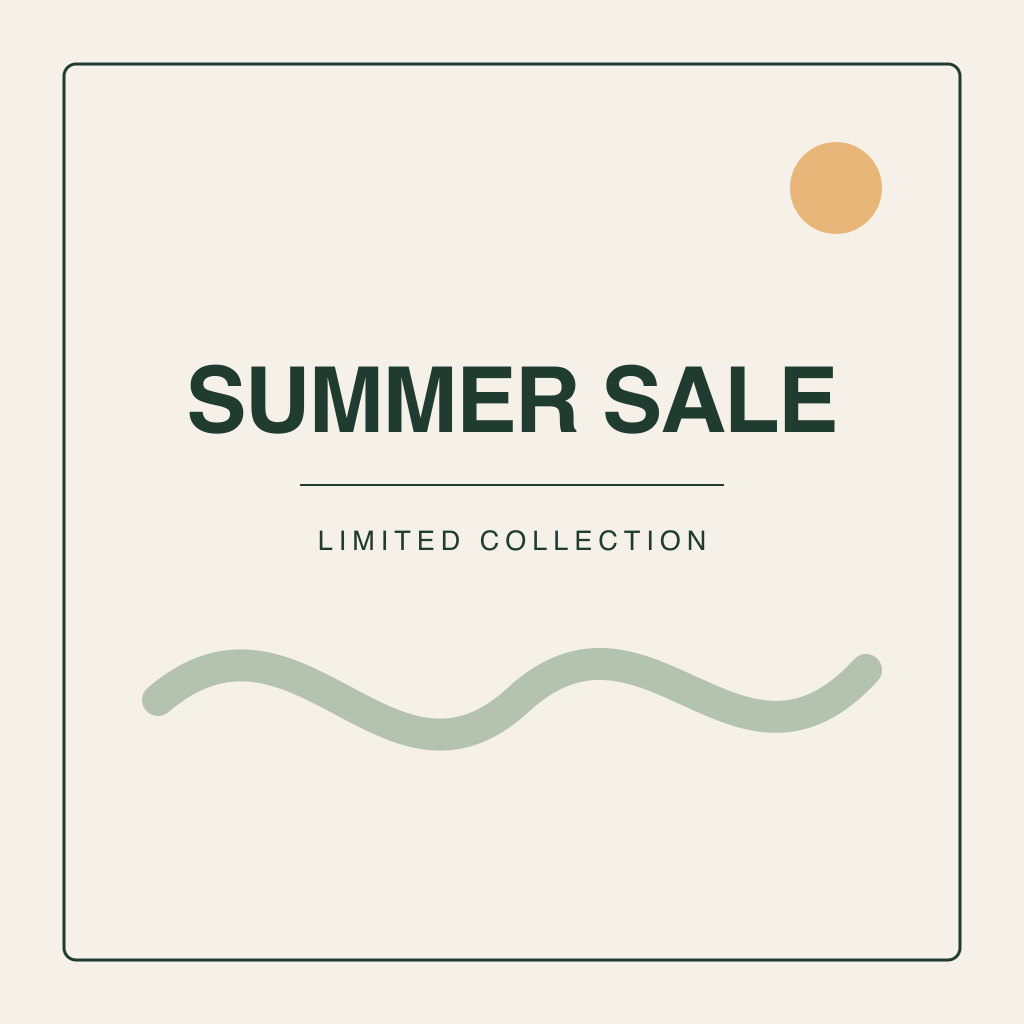
SUMMER SALE
LIMITED COLLECTION
Your image will appear here
Review the result before use.
SAME VISUAL. NEW WORDS.
See how to edit text in image files: replace a poster headline and ask AI to keep the surrounding design close to the original.
REAL EXAMPLE · Unretouched AI output.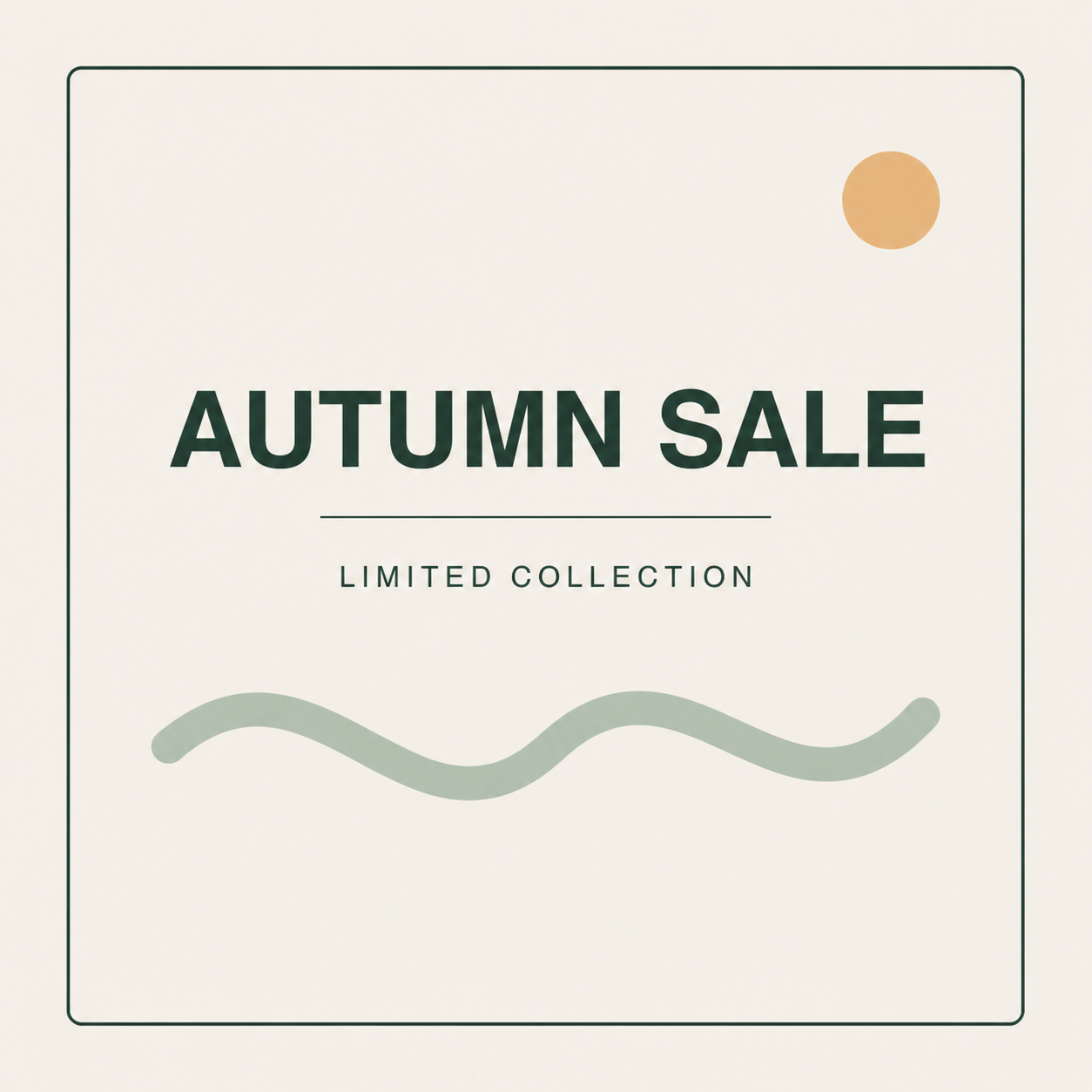
FROM ORIGINAL TO UPDATED
Use a clear, high-resolution original. JPG, PNG, and WebP are supported. Text regions are detected automatically and numbered on your image.
Compare each locked original with its editable copy. Change one or several rows, then click Save changes to generate the result.
Inspect spelling, alignment, and nearby details at full size. Download the finished image. If it needs work, adjust the replacement text and save again.
SMALL CHANGES, EVERYDAY USES
When your words are baked into an image, a quick update can become a full redesign. AI-assisted editing offers another starting point—without pretending to replace an editable source file.
Correct a misspelled word in your own graphic without recreating its layout from scratch.
Try updated wording on a social post, event poster, or promotional visual you have permission to edit.
Supply your translated text and request a similar visual style. Check letter shapes, line breaks, and meaning yourself.
GOOD QUESTIONS
A few things worth knowing about editing text with AI.
See plans & credit costsUpload your image to detect text automatically. The left column keeps the original text fixed; edit its copy on the right. Review the credit cost and click Save changes to generate your edited image, then inspect and download the result.
Yes. Upload a JPG, PNG, or WebP image, up to 20 MB per file. The AI works from the image itself; it does not require an editable Photoshop, Illustrator, or Canva source file. It returns an image, not editable text layers.
The editing instructions ask the AI to preserve the original style, placement, and surrounding image. Exact font matching and pixel-perfect preservation are not guaranteed. Small lettering, unusual fonts, busy backgrounds, and angled text can need another attempt.
You can prepare your editing instructions without paying. Image generation uses credits, and the editor displays the cost for your selected settings before you submit. Check the Pricing page for current plans. Uploading and generating require sign-in.
You can request replacement text in another language. Supply the exact spelling, punctuation, and capitalization you want. Lettering accuracy and layout vary, especially when the translation is much longer than the original. Review every character before publishing.
Only upload images you have permission to edit. Avoid sensitive personal information and confidential documents. Do not use the tool to falsify evidence, identification, receipts, or someone else’s statements. Read the Privacy Policy and Terms before uploading.
YOUR IMAGE. YOUR WORDS.